AI That Actually Helps
How I Turned 8 Paper Appointments Into Calendar Events With ChatGPT
I had eight physiotherapy appointments written down on one piece of paper.
And I really, really did not want to type every single one into my calendar.
Date. Time. Title. Reminder. Repeat eight times.
It is exactly the kind of tiny admin job that takes only a few minutes — but somehow feels like one task too many when your brain is already keeping track of everything else.
So I tried giving the paper to ChatGPT instead.
The useful part was not that AI magically took over my calendar.
It was that it did the boring typing without taking the checking away from me.
And that distinction matters.
The Real-Life Problem
The appointment note already contained the dates and start times I needed.
What it did not contain was the duration of each appointment.
I knew all eight sessions had the same duration, but that information was not written on the paper.
Normally, I would have opened my calendar and entered every appointment manually.
Instead, I took a photo of the note and asked ChatGPT to extract the appointments first — but specifically told it not to create anything until I had checked the final list.
That little instruction turned out to be the most useful part of the whole experiment.
What I Asked ChatGPT
This is the privacy-safe version of the prompt I would use again:
“These are appointments I need in my calendar. Please extract the appointments from the photo. Before creating anything, check whether you have all the information you need. If anything important is missing or unclear, ask me first. Do not create any calendar events until I explicitly confirm the final list.”
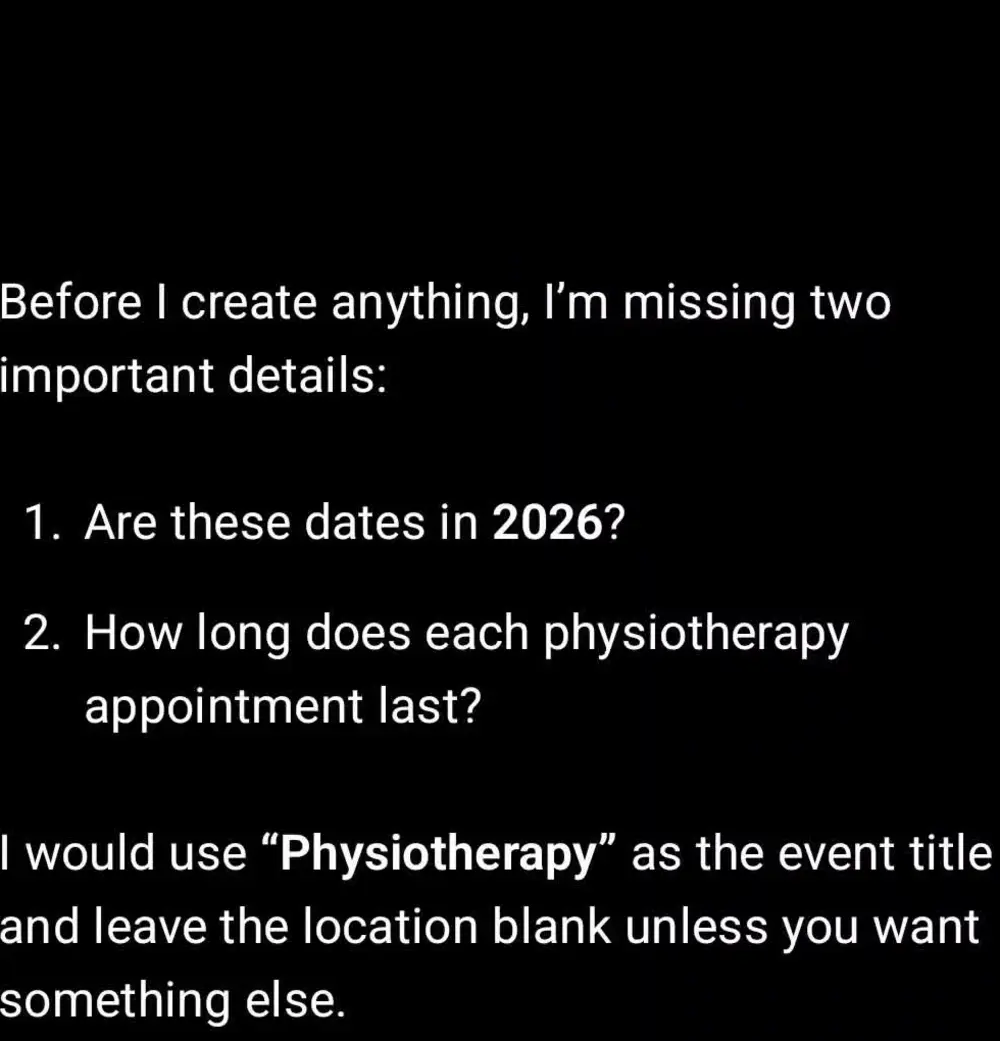
Instead of guessing, ChatGPT noticed that one important piece of information was missing:
the appointment duration.
Exactly what I wanted.
I then added the missing information and asked it to use the same duration for all eight appointments, plus a reminder one day before.
After that, I reviewed the full list.
Only once everything looked right did I confirm that the appointments could be added to my calendar.
What Happened in Real Life
It worked.
ChatGPT extracted all eight appointments from the photo, flagged the missing duration and waited for clarification instead of silently inventing one.
Once I provided the missing information, I could check the complete list before anything was saved.
Then the appointments appeared in my calendar.
No eight rounds of manual typing.
But also no “AI, just do whatever you think is right.”
That is the part I actually care about.
For family admin, I do not want automation just for the sake of automation.
I want AI to remove the repetitive part while I stay responsible for whether the information is correct.
The Part I Wouldn’t Skip
If you try this yourself, I would not simply upload a photo and say:
“Add these to my calendar.”
A paper note can be incomplete.
A time may be hard to read.
A duration may be missing.
There may be several possible interpretations of something on the page.
For something like appointments, the safer workflow is:
Extract first.
Clarify anything missing.
Review the list.
Confirm only when it is correct.
That takes a few extra seconds.
It also means AI is helping with admin instead of quietly making decisions for you.
A Simple Workflow to Use
Here is the version I would use next time:
- 1. Take a Clear PhotoMake sure the dates and times are readable.Before uploading it, check that the photo does not include personal information you do not actually need to share.
- 2. Ask AI to Extract — Not SaveTell it explicitly to identify the appointments first and ask about anything that is missing or unclear.
- 3. Add the Missing DetailsThat might be:
- appointment duration
- calendar title
- reminder
- location
- timezone, if relevant
- 4. Check the Complete ListRead every date and time before confirming.Eight appointments typed quickly by AI are still eight appointments that can be wrong if the original information was misunderstood.
- 5. Confirm the Final ListOnly then let the appointments be created in the calendar you actually want to use.That is it.The AI does the repetitive typing.You still make the decision.

Try It Yourself
Copy and paste this prompt:
“These are appointments I need in my calendar. Please extract the appointments from the photo. Before creating anything, check whether you have all the information you need. If anything important is missing or unclear, ask me first. Do not create any calendar events until I explicitly confirm the final list.”
Then, once AI has extracted everything:
- add any missing information
- check every appointment
- explicitly confirm the final list
You can use the same basic idea for other paper-to-digital admin too — not just appointments.
The important rule stays the same:
“Let AI do the typing. You do the checking.”
Got a paper appointment slip waiting to be typed in? Save the prompt above and try the review-first version next time.